Getting Started with PROCRASTIcamper — 5 Steps
Connect with fellow RV travelers at parks near you
Getting Started with PROCRASTIcamper — 5 Simple Steps
Your First 5 Steps
To get started, here are a few steps to take you from zero to fully organized. Follow along or jump to whichever step matters most right now.
Step 1 — Add Your Reservations
The first thing to do is get your reservations into the system. You have three ways:
Create manually — Tap Create New Reservation and enter the details (park name, dates, site number).
Import from TripWizard or Thousand Trails — If you already have reservations in another system, use the Import button to bring them in automatically.
Ask the AI assistant — Open the AI chat and say something like "Help me add a reservation at Yellowstone from June 1–7." It will walk you through the process step by step.
Once your reservations are in, you'll see them on your dashboard and in your upcoming trips list.
Step 2 — View Your Reservations
Now that you've got trips in the system, explore them two ways:
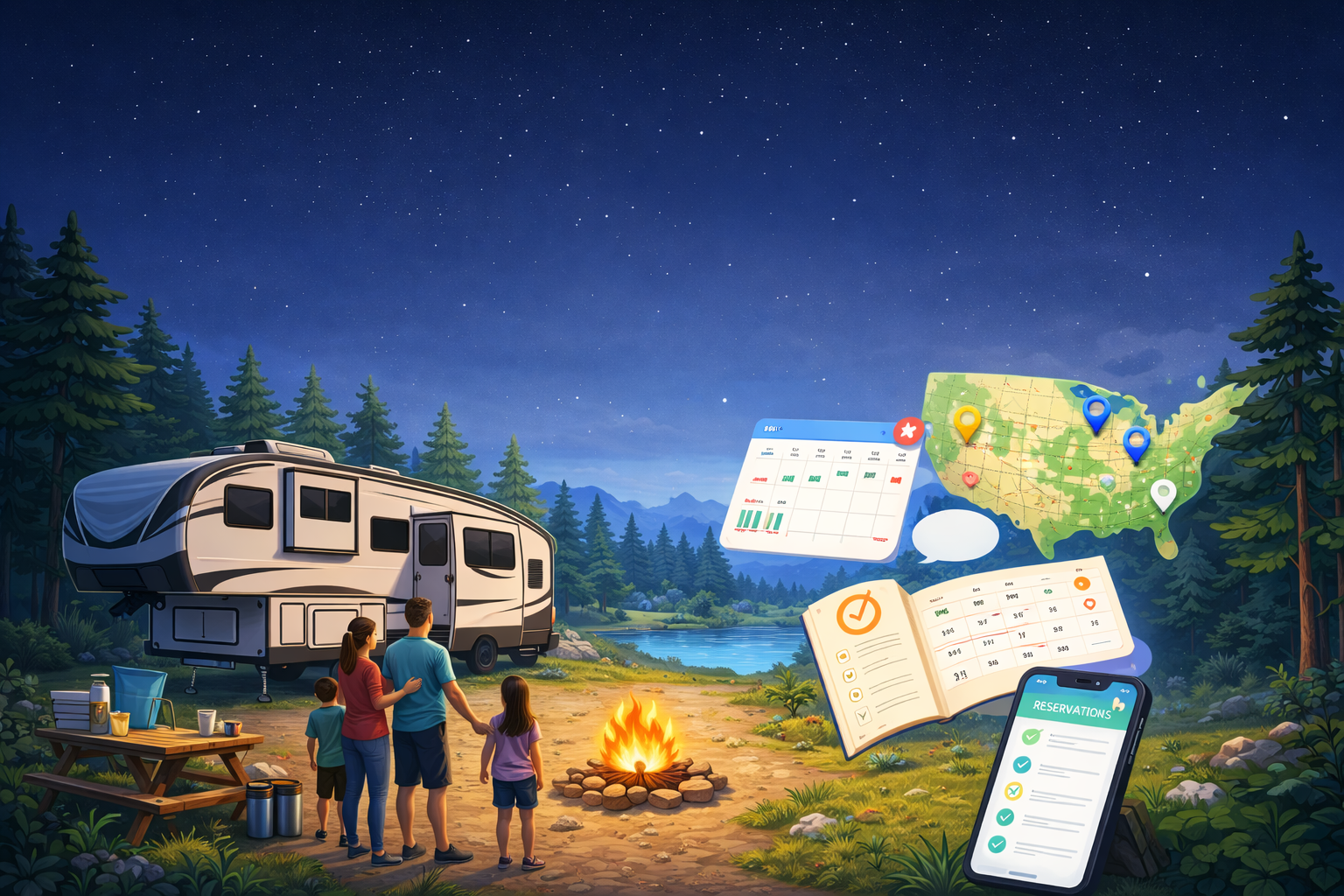
US Map — See every reservation pinned on an interactive map. Great for spotting patterns and planning routes.
Timeline — A horizontal calendar strip that shows all your trips across the year. Drag left and right to scroll through months.
Both views are available from the Reservations page or from the shortcut buttons on your dashboard.
Step 3 — Connect with Friends
Camping is better with people. Invite friends so you can see each other's trips and discover overlapping dates.
Search by name or username — If your friend is already a member, find them instantly.
QR code — Show a QR code on your phone and let someone scan it in person at a campground.
Invite link — Copy a link and send it via text, email, or any messaging app.
Once you're connected, both of you can see shared and public reservations on the friends timeline.
Step 4 — Share Your Plans
After you've added reservations and connected with friends, you can share your plans.
Open any reservation and toggle its visibility to Shared with Friends or Public.
Use batch sharing to update multiple reservations at once.
Friends with overlapping dates will see overlap badges on the timeline.
Sharing is always opt-in — nothing is visible to friends until you choose to share it.
Step 5 — Groups & Chat
Ready to coordinate with a bigger crew?
Browse groups — Discover public camping communities or create your own private group.
Group chat — Every group has its own chat room for planning trips, sharing tips, and coordinating arrivals.
Friend chat — Direct 1-on-1 messaging with any connected friend.
Groups are free during the trial period, so dive in and start organizing!
Tips
Use the AI chat on the dashboard for quick help with any feature.
Tap the numbered shortcut buttons (1 Reservations, 2 Friends, 3 Groups) at the top of your dashboard for fast navigation.
Collapse any Getting Started card once you've completed that step to keep your dashboard tidy.
Happy camping! 🏕️