By Procrasticamper Team · February 26, 2026
Export from TripWizard and Import into ProcrastiCamper
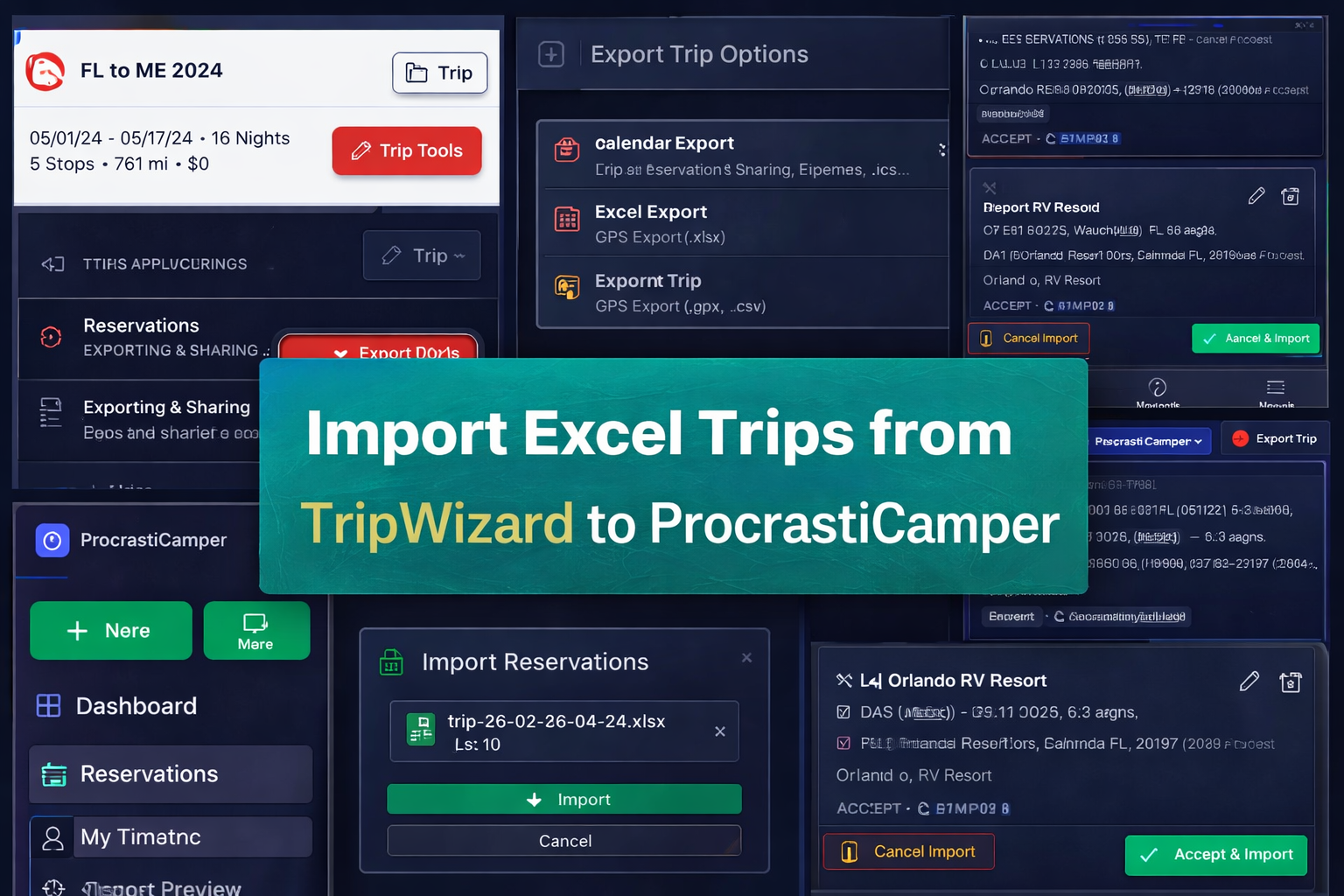
If you have trips in Trip Wizard and you want to share them with friends and community in ProcrastiCamper, the process is straightforward. Export your trip as Excel, then import it into your reservation timeline.
Step 1: Export Your Trip from TripWizard
Open a specific trip in TripWizard.
Click the red Trip Tools button.
Under Exporting & Sharing, choose Export Trip.
Select Excel Export (.xlsx).
Save the file to your computer.
You now have an .xlsx file ready to move.
Step 2: Open Import in ProcrastiCamper
Go to Reservations from the dashboard.
Open My Timeline (you can also import from Card View or U.S. Map View).
Make sure the timeline is expanded.
Click the cogwheel in the corner.
Under Data, choose Import Reservations.
Step 3: Upload and Preview
Select the Excel
.xlsxfile you exported.Click Import.
You’ll land on the Import Preview page.
If it doesn’t open automatically, check the left navigation — the Import Preview link stays visible while the import is pending.
Step 4: Review and Finalize
On the Import Preview page you can:
Remove stops you don’t want to include.
Edit dates or details.
Confirm night counts.
When everything looks right, click Accept & Import.
Your TripWizard trip is now inside ProcrastiCamper — visible on your timeline, shareable with friends, and ready for real coordination.